- Documentation
- FlowFuse User Manuals
- Using FlowFuse
- Getting Started
- Static asset service
- Bill of Materials
- FlowFuse Concepts
- Instance States
- Changing the Stack
- Custom Hostnames
- Custom Node Packages
- DevOps Pipelines
- Environment Variables
- FlowFuse Expert
- FlowFuse File Nodes
- FlowFuse MQTT Nodes
- FlowFuse Persistent Context
- FlowFuse Project Nodes
- FlowFuse Tables
- Groups
- High Availability mode
- HTTP Access Tokens
- Instance Settings
- Logging
- Role-Based Access Control
- Shared Team Library
- Snapshots
- Team Broker
- Teams
- User Settings
- FlowFuse API
- Migrating a Node-RED project to FlowFuse
- Device Agent
- Device Agent
- Hardware Guides
- FlowFuse Cloud
- FlowFuse Cloud
- FlowFuse Self-Hosted
- Quick Start
- Installing FlowFuse
- Upgrading FlowFuse
- Administering FlowFuse
- Support
- Community Support
- Premium Support
- Debugging Node-RED issues
- Contributing
- Contributing to FlowFuse
FlowFuse Tables
Warning
This feature is currently in the beta state.
From FlowFuse v2.20.0 Teams (Enterprise teams only) can create a relational database to use to store data.
You can create a database by selecting the Tables entry in the left hand menu
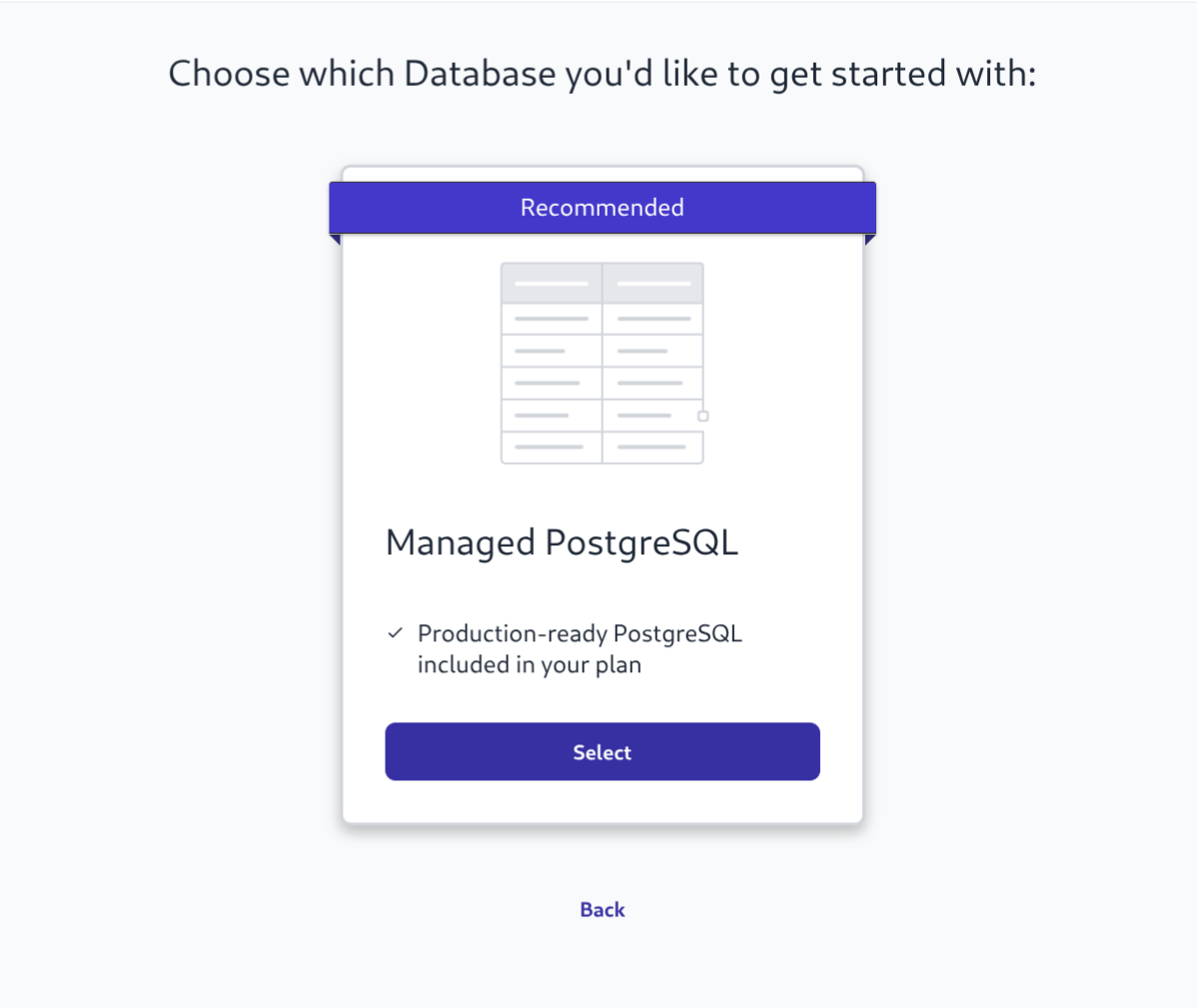 Screenshot of FF Tables create database menu
Once you have created a database you can use the wizard to create some tables. The wizard offers a subset of the most used column types and has the option to set default values and generate sequences for ids.
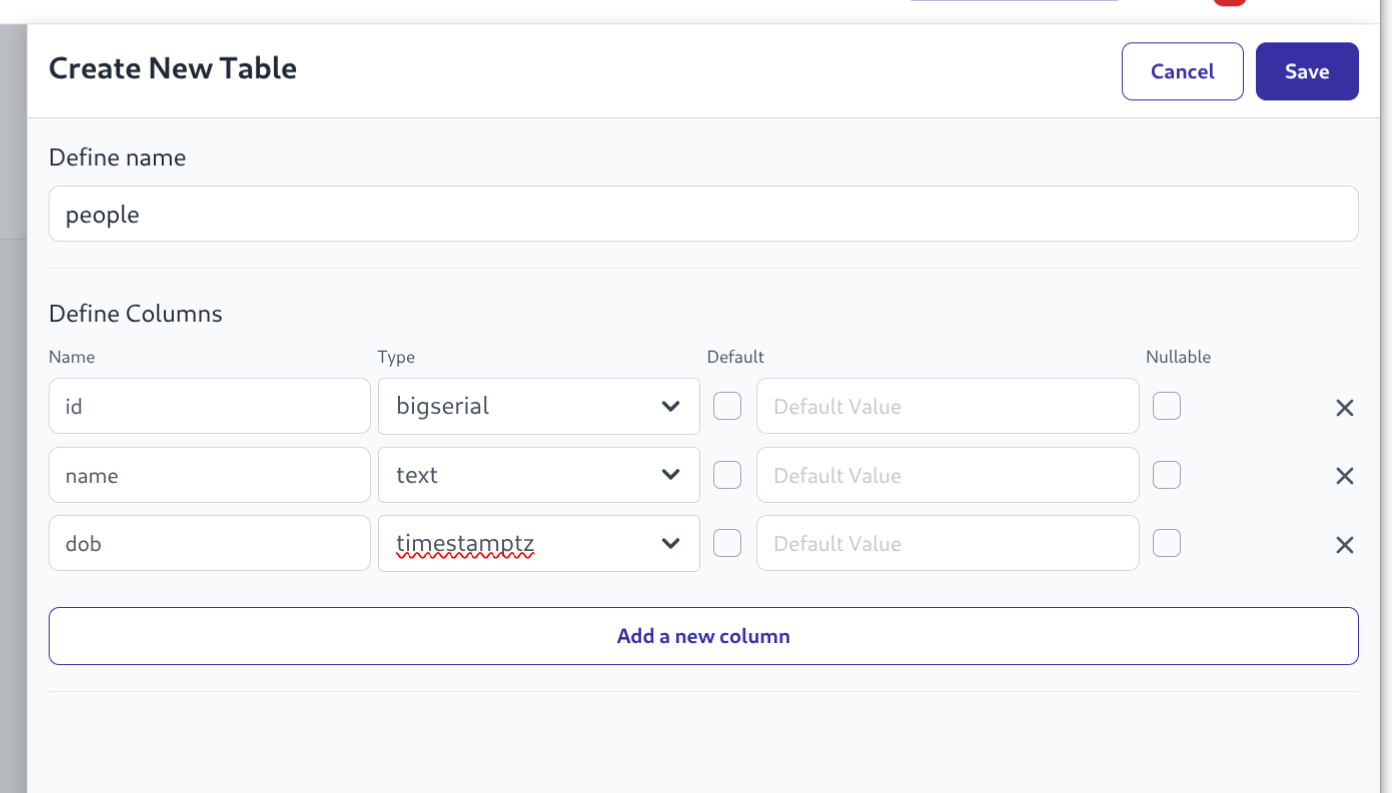 Screenshot of create tables wizard
Once the tables have data in them then the first 10 rows will be displayed in the Explorer tab.
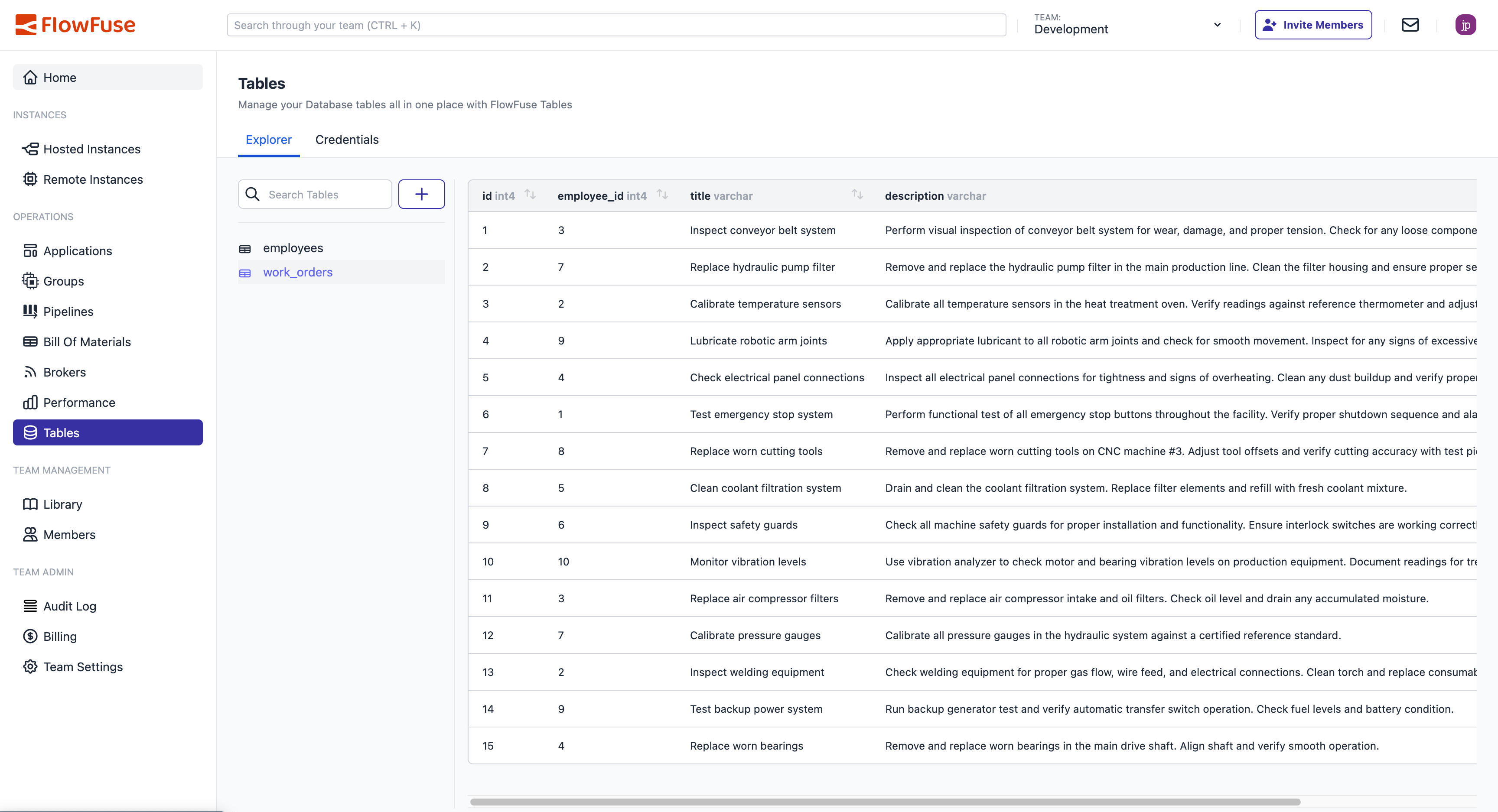 Screenshot of Tables Explorer
Query Nodes
FlowFuse Node-RED instances come with a Query Node that will be enabled if running in a Team with a FlowFuse Tables database enabled. This node will automatically import the required credentials to connect to the database.
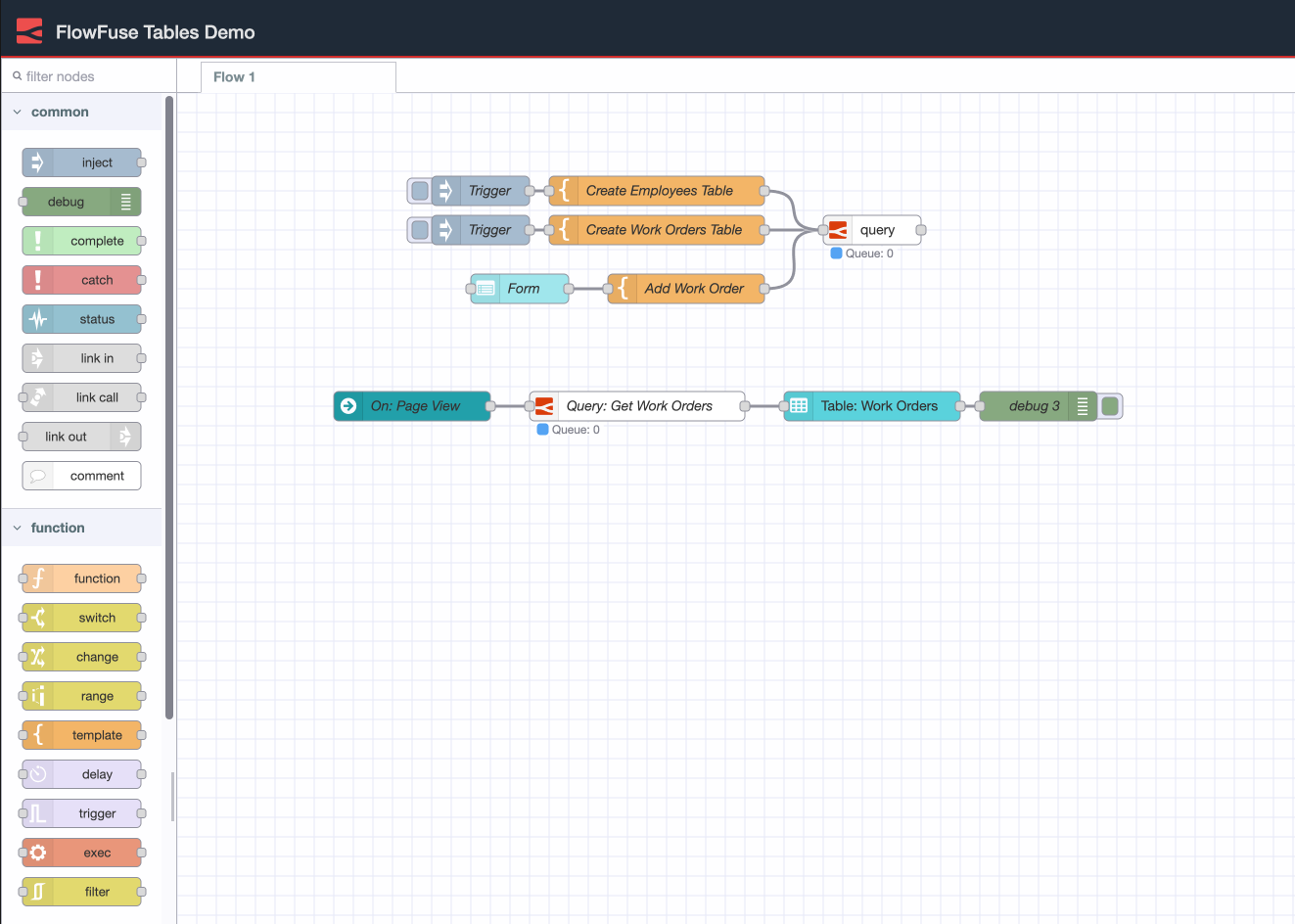 Screenshot of Node-RED query node
Postgres Clients
You can connect any Postgres Client to the FlowFuse Tables database using the information on the Credentials tab
 Screenshot of credentials